My report templates: The templates you made.
Used report templates: The templates you used previously.
Shared report templates: The templates shared by other users.
Vendor report templates: The templates provided to you by Logpoint.
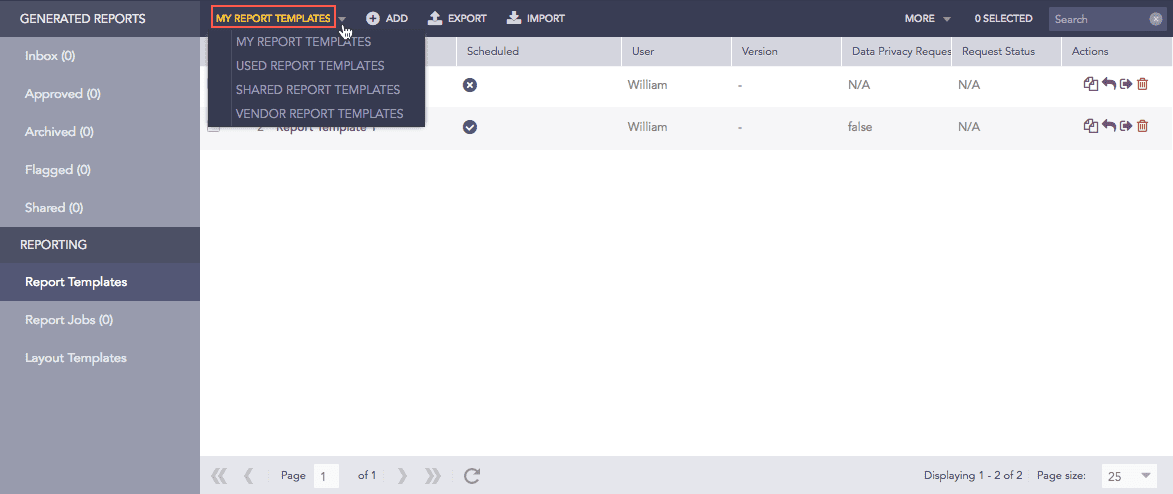
Types of Report Templates
Logpoint automatically runs a report template based on the defined scheduling rules but you can also run it manually. When you run a report manually, it does not change the report’s automatically scheduled time. To view ad-hoc or recurring reports, click Run for the report in Template. To send the report as an email attachment, you must configure the SMTP service.
To run a template manually:
Go to Report >> Report Templates.
Click Run This Report ( ) icon in Actions.
Select the Repos, Time Zone, and Time Range.
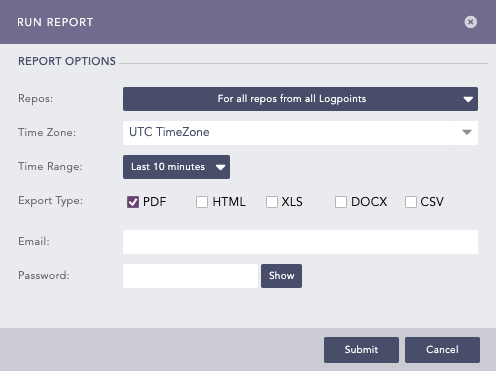
Run Report
Select the Export Type.
Enter the Email address(es), to send the report as an attachment in the email.
Enter Password to encrypt the report. Reports in PDF, XLS, DOCX, and CSV formats are password protected.
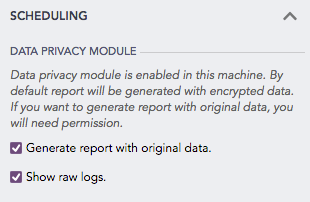
If Data Privacy is enabled, details are under DATA PRIVACY MODULE.
Select Generate report with the original data to decrypt the fields in the report. If Data Privacy is enabled, when you select Generate report with the original data, a request message is sent to the users with the Can Grant Access permission. To view the request, go to Settings >> Configurations >> Data Privacy Module >> Pending Request. The report can be viewed or downloaded only after the request is approved.
Select Show raw logs to access the raw logs in the report.
Click Submit.
You can share a report template with all Logpoint users and give them read, edit, or full permissions. Any changes made in the report templates are visible to all the shared users. A user with Full permission can also Share and Delete a shared report template. You cannot share a Used report template. You can unshare a report template by removing the permissions for all the user groups from Share Report Template.
Each parameter in a shared report template is categorized into two types:
Global parameters can be changed only by the users with the Edit or Full permissions. Changes in the global parameters are reflected for all the users using the shared report template. The following parameters are global:
The name and the report layout of the report template.
The queries, query order, and query render type of the report template.
You can make changes to a report specifically for yourself through Personalized parameters. You can change:
Scheduling
Data privacy configurations if data privacy is enabled
Repo selection
Email and memory usage for scheduled reports
Password
All users with access to a report template can change Personalized parameters but the changes made are only applicable to the user who made them.
To share a report template:
Go to Report >> Report Templates.
Click the Share/Unshare ( ) icon in Actions for the report.
To share multiple report templates, select all the templates you want to share in the list. Click the MORE dropdown and select Share Selected To Users.
To share all the report templates, click the MORE dropdown and select Share All To Users.

Sharing Report Templates
Select the user groups to share the report templates with.
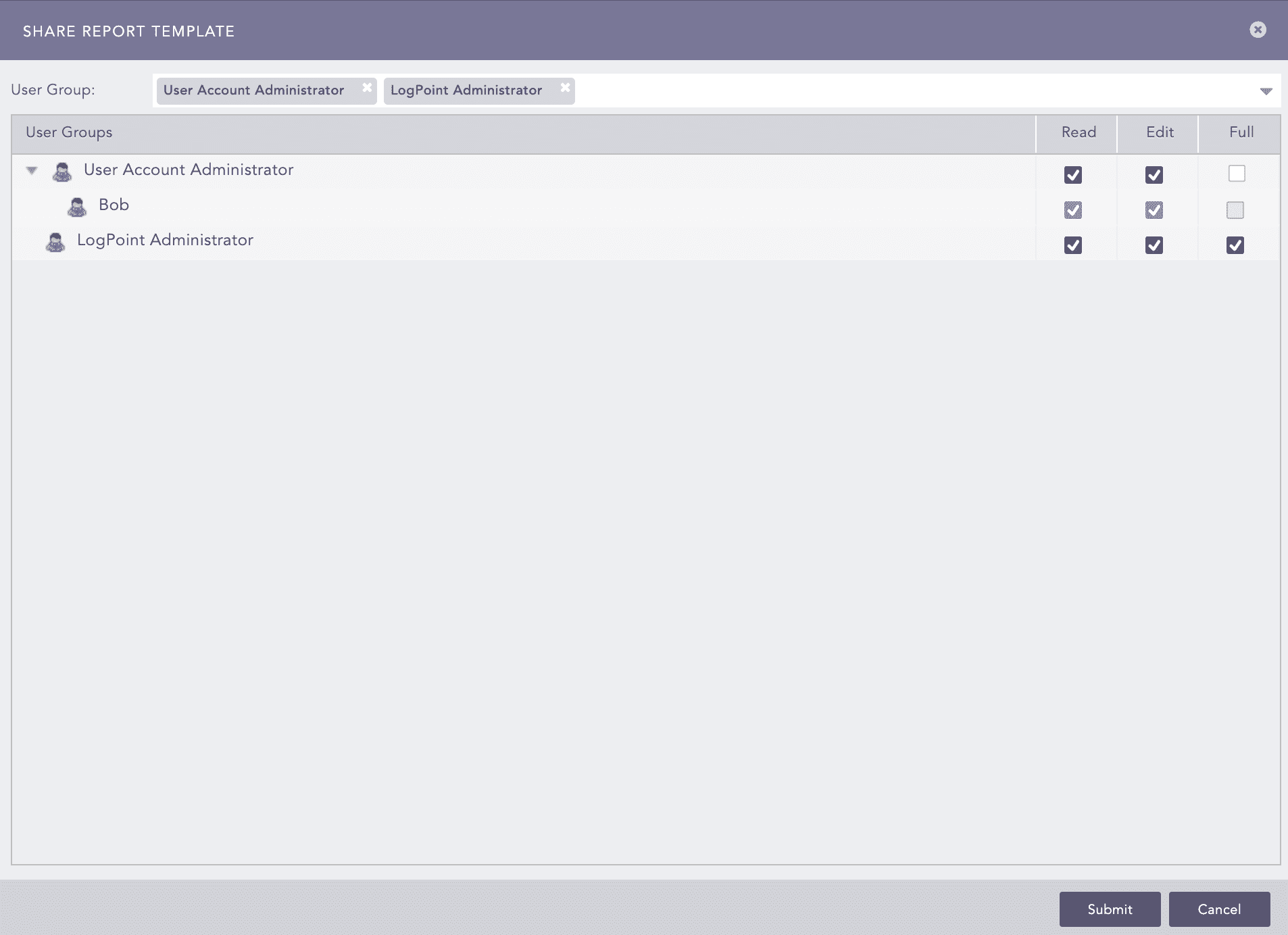
Permissions for a shared report template
Select the Read, Edit, or Full permissions for the users. Go to Sharing a Report Template for details on user permissions.
Click Submit
To delete a shared report template’s owner, you must delete the shared template or transfer the template’s ownership to another user. Go to TRANSFER OWNERSHIP, which is displayed when you attempt to delete a user whose template is being shared. The transferred template is listed on the Report Templates page in the owner’s system.
Go to Settings >> User Accounts >> Users.
De-activate the user by clicking the De-Activate User icon in Actions.
Click Manage De-Activated Users.
Click the Delete icon in Actions.
Click Yes.
To transfer the ownership, select a user from the dropdown and click Submit.
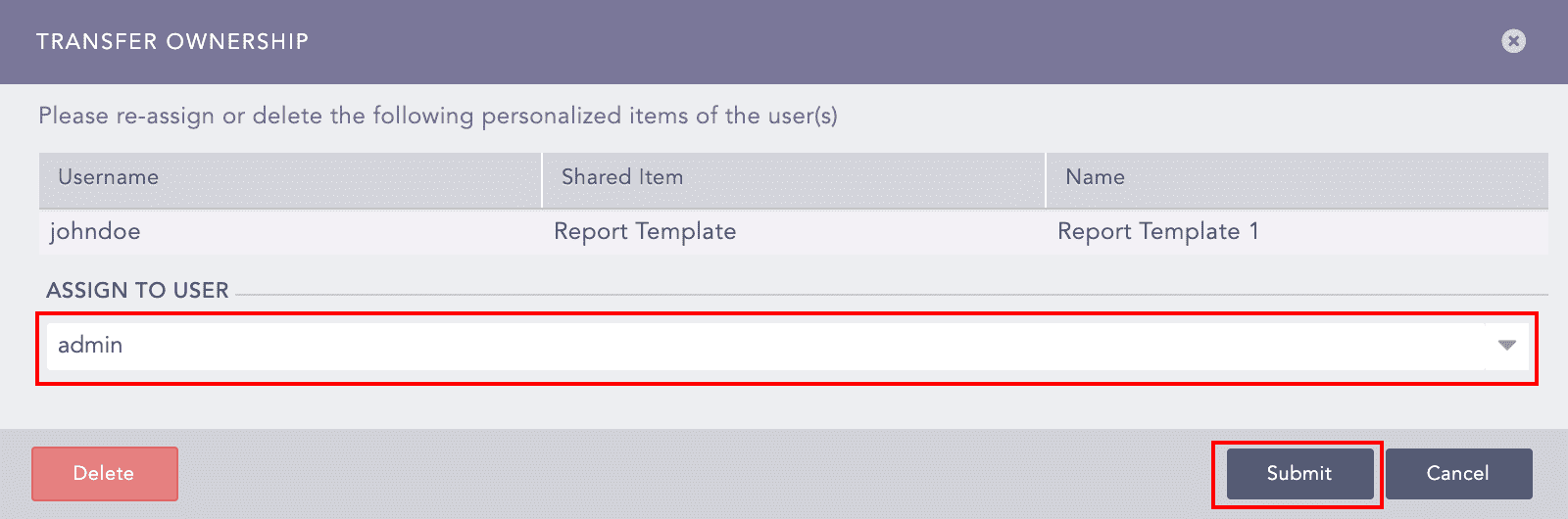
Transferring the Ownership of a Shared Report Template
To delete the user and user’s template without transferring their ownership, click Delete.
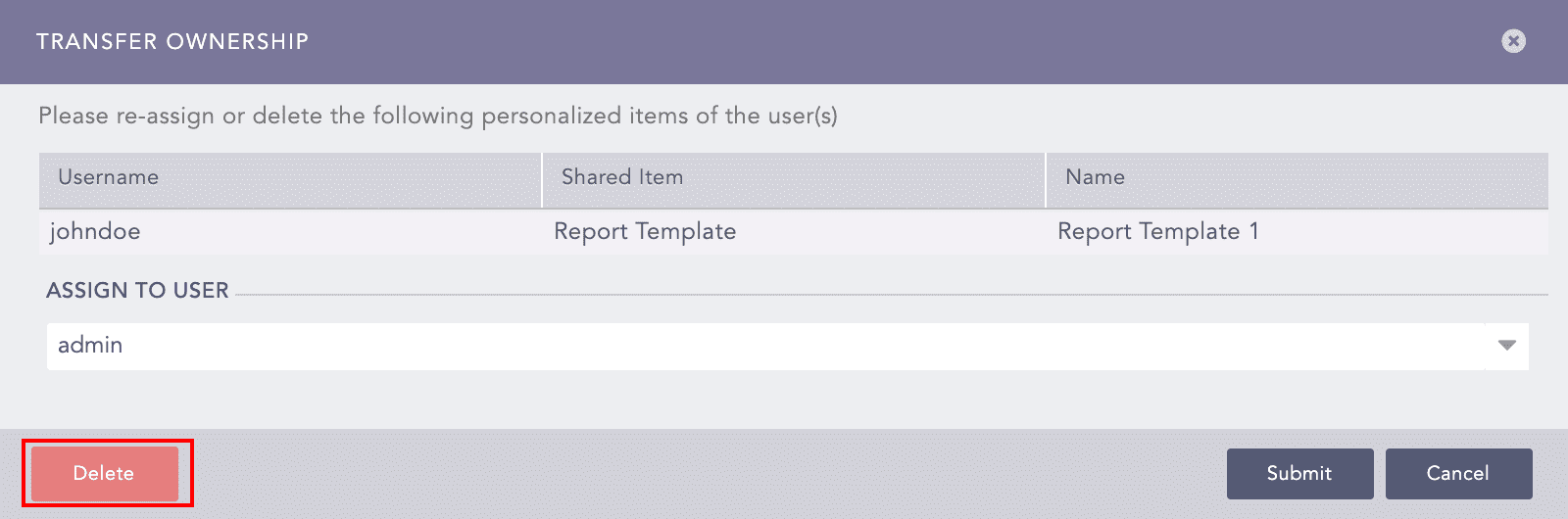
Deleting a Shared Report Template’s Owner
When a report template is exported, the password set in the template is not exported. You need to set a password again for the exported template.
Go to Report >> Report Templates and select the report templates you want to export.
Click EXPORT.
Save the exported package.
Go to Report >> Report Templates.
Click IMPORT and browse for the required report templates.
Click Upload.
When a report template is cloned, the password set in the template is not cloned. You need to set a password again for the cloned template.
Go to Report >> Report Templates.
Click the Clone Report ( ) icon under Actions.
To clone multiple Report Templates, select all the ones you want to clone. Click the MORE dropdown and select Clone Selected Report Templates.
To clone all the Report Templates, click the MORE dropdown and select Clone All Report Templates.
Cloning Report Templates
Enter a new Name for the cloned template.
Select Replace Existing? to replace an existing template with the same name.
Click Clone.
Go to Report >> Report Templates.
Click the Delete () icon under Actions.
To delete multiple Report Templates, select all the ones you want to delete. Click the MORE dropdown and select Delete Selected Report Templates.
To delete all the Report Templates, click the MORE dropdown and select Delete All Report Templates.
Deleting Report Template
Click Yes.